Follow our step-by-step Firestick IPTV setup guide and learn how to configure your IPTV service on a compatible Amazon Fire TV device.
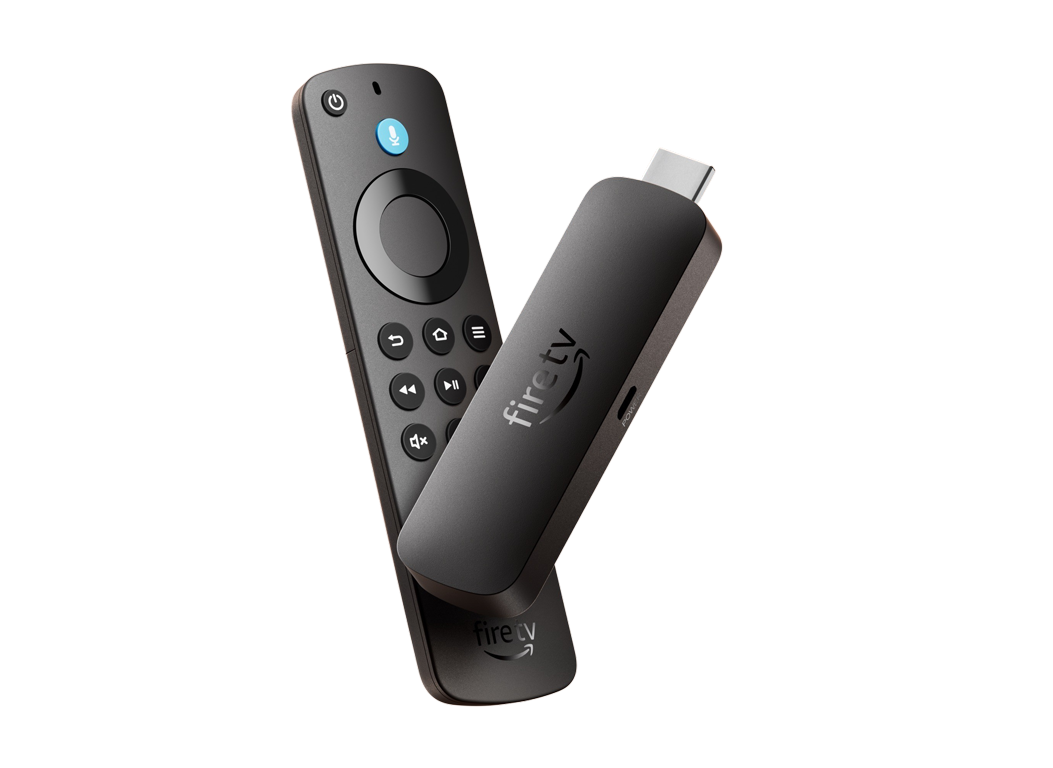
1. Open the FireStick home screen.
2. Go to the Find menu page.
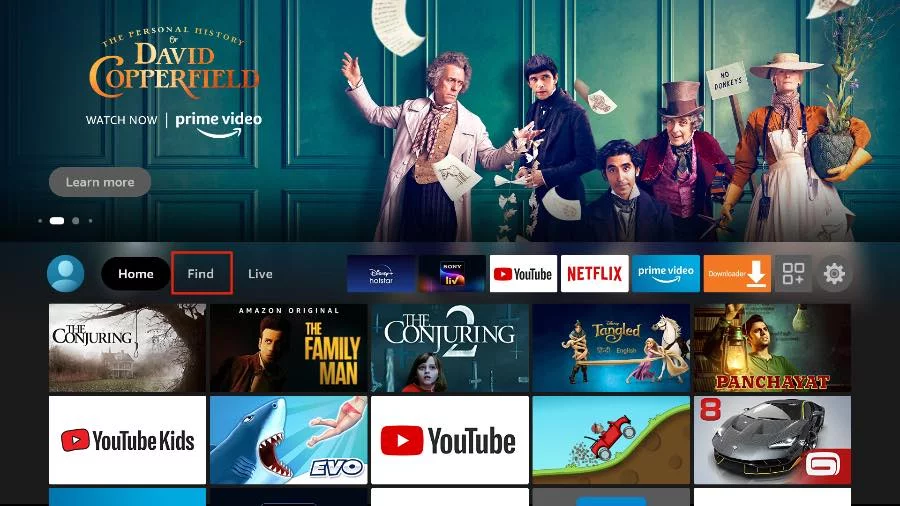
3. Select Search at the top.
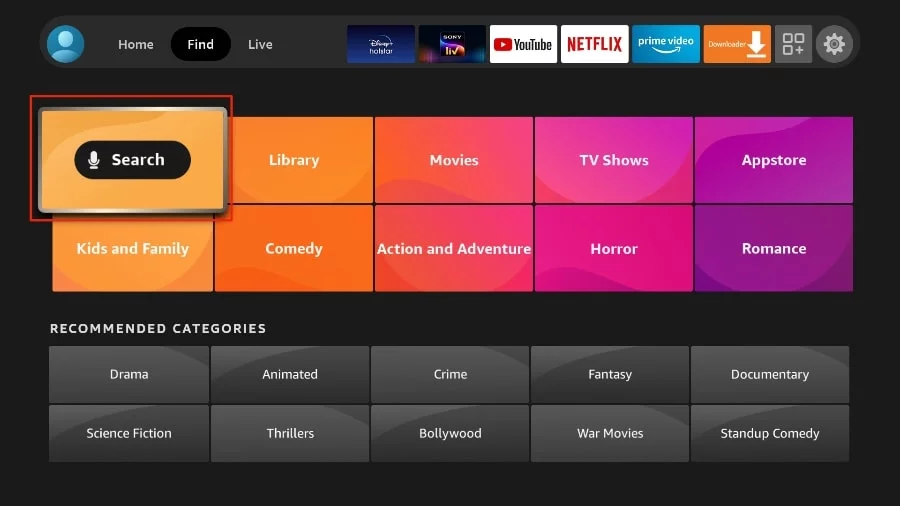
4. This will open a virtual keyboard on your FireStick.
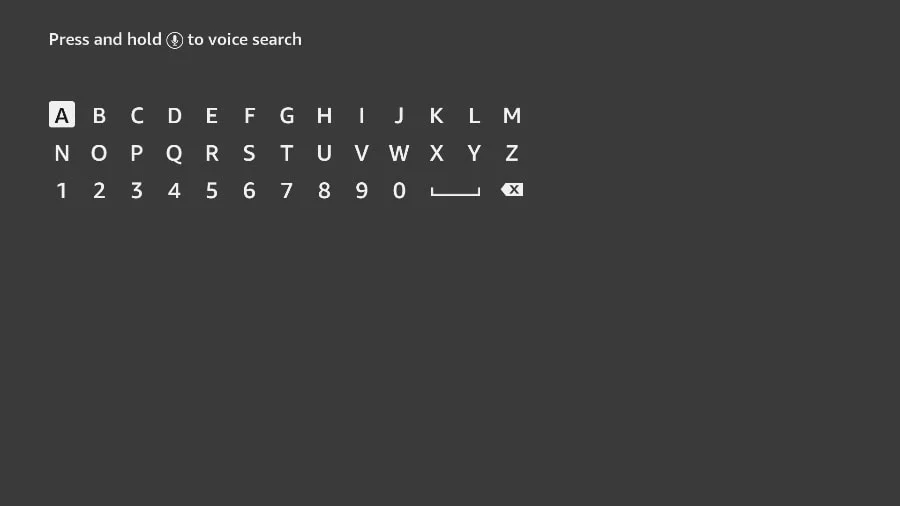
5. Start typing Downloader. Select Downloader when it appears among the suggestions below the keyboard.
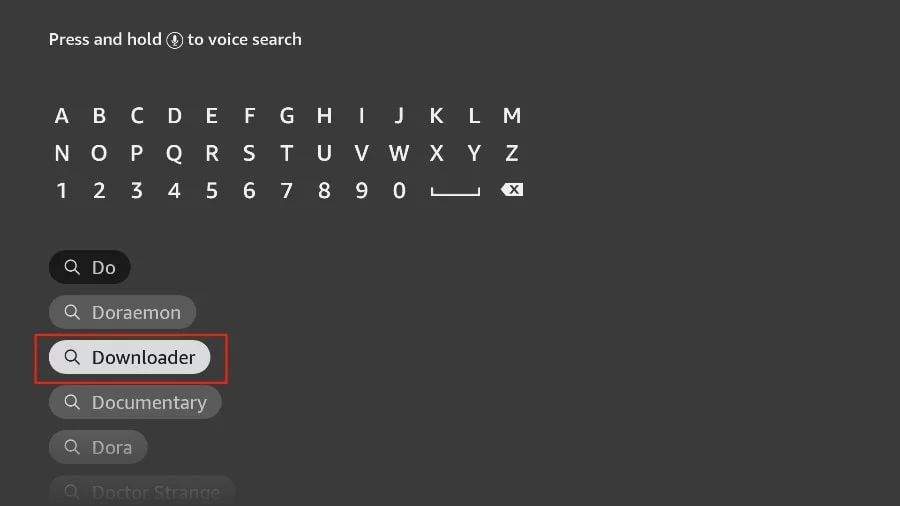
6. Select the Downloader application, recognizable by its orange background. Then, in the next screen, select the Get or Download button.
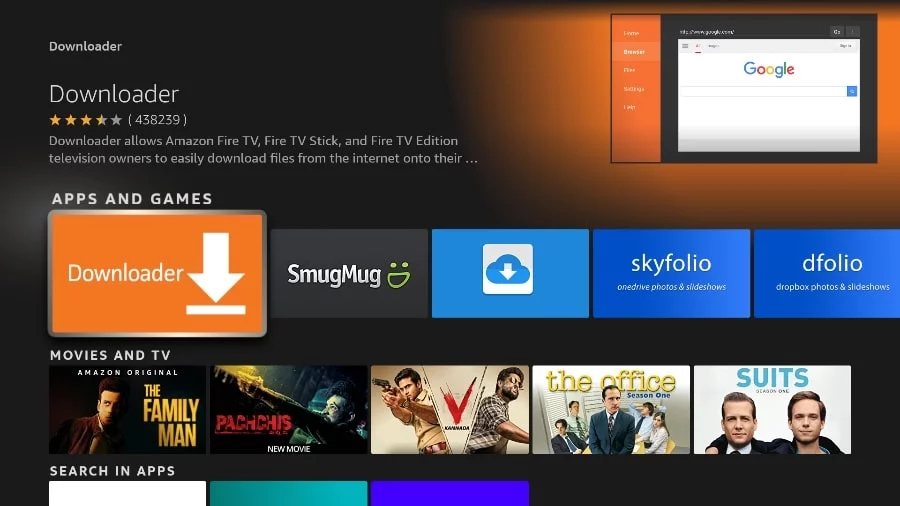
In some version of FireStick
1. Press home button on your FireStick remote.
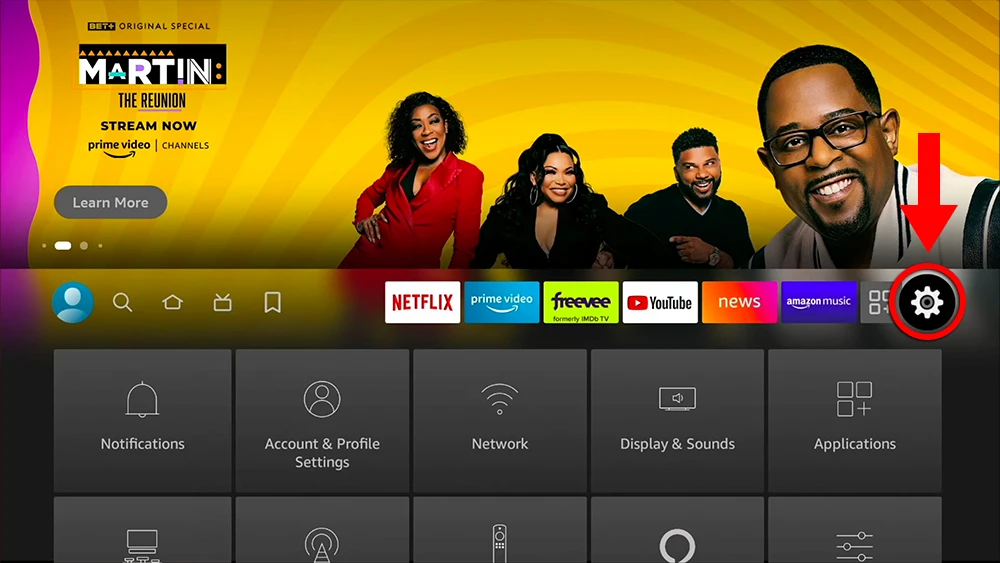
2. Go to the gear settings page on the far right.
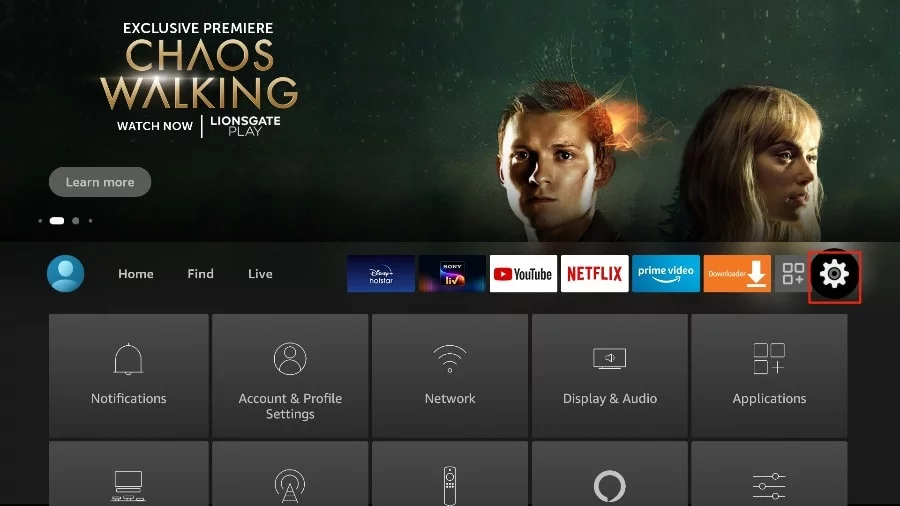
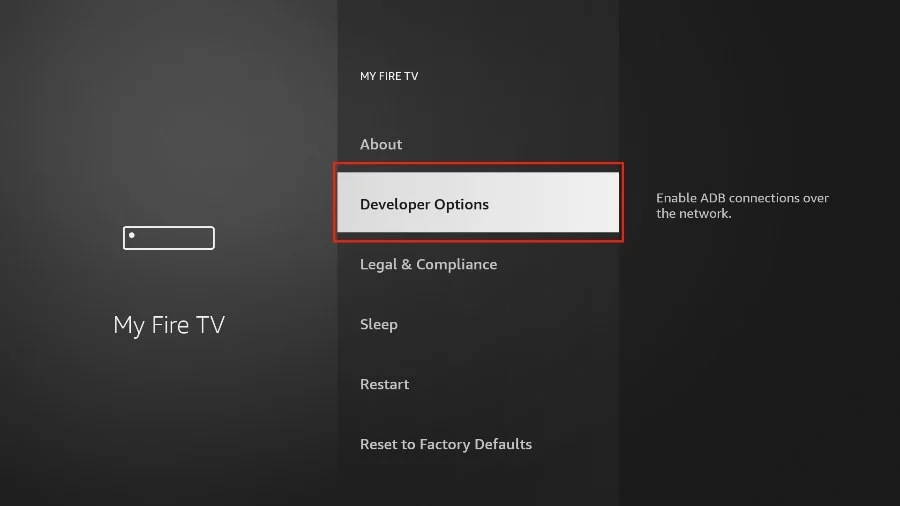
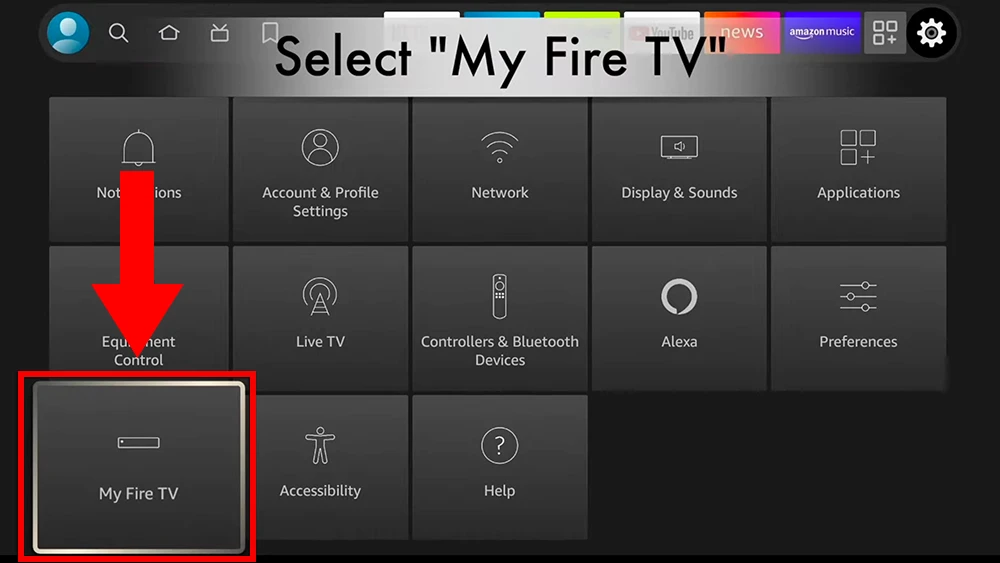
3. Scroll down and select “My Fire TV“.
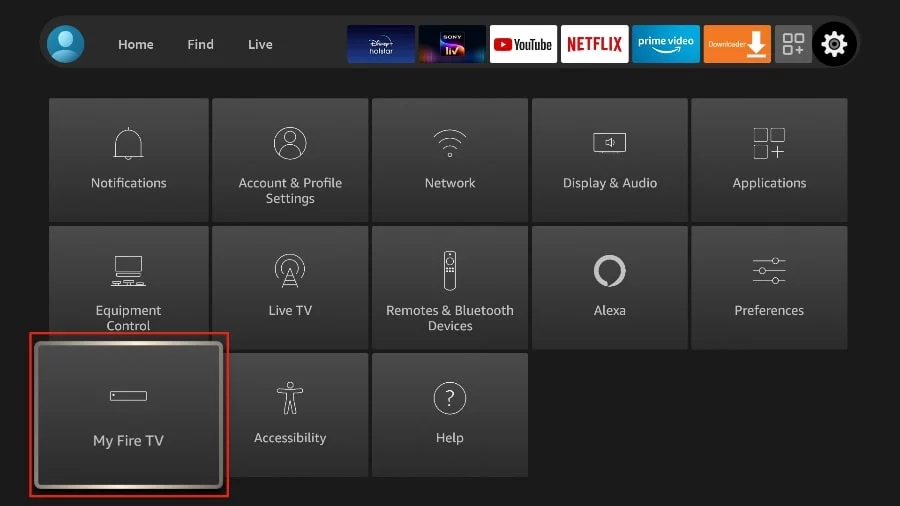
4. Choose “Developer Options“.
5. Find “Apps from Unknown Sources”. By default, it is disabled. Select it to turn it ON.
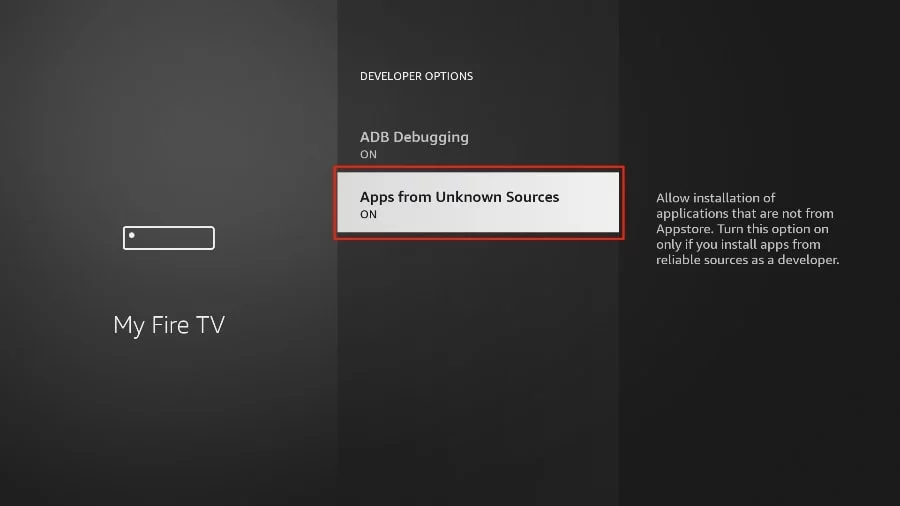
You can now sideload any application installer file (APK) to the FireStick without any issues.
In Other version of FireStick
1. Press home button on your FireStick remote.
2. Go to the gear settings page on the far right.
3. Scroll down and select “My Fire TV“.
4. Select “About“.
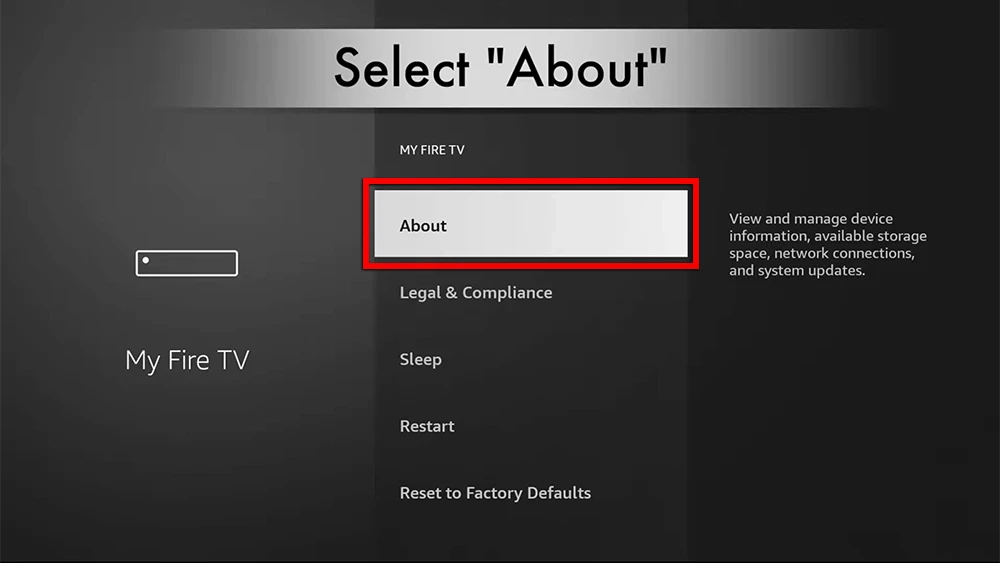
5. Click on “Fire TV Stick” 7 times.
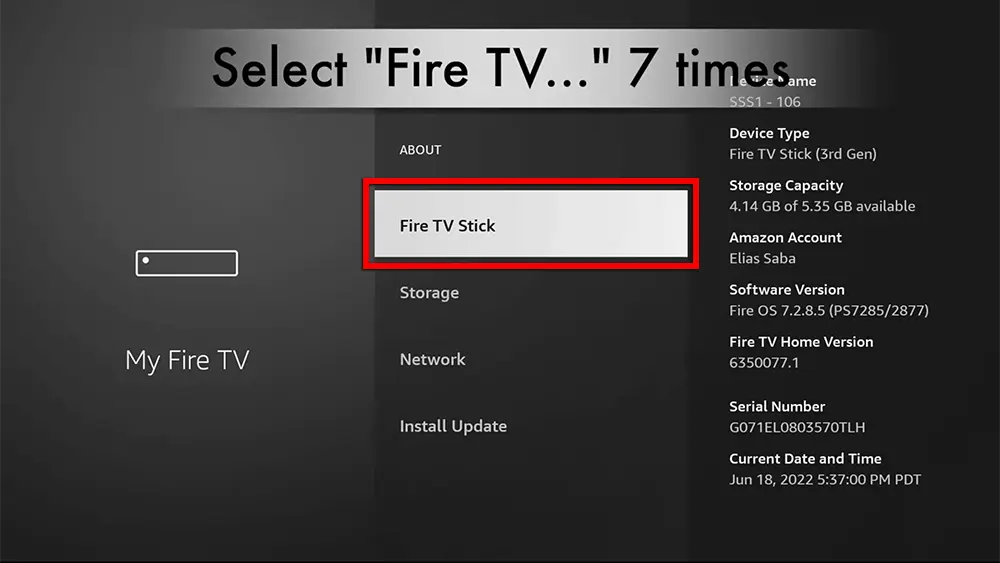
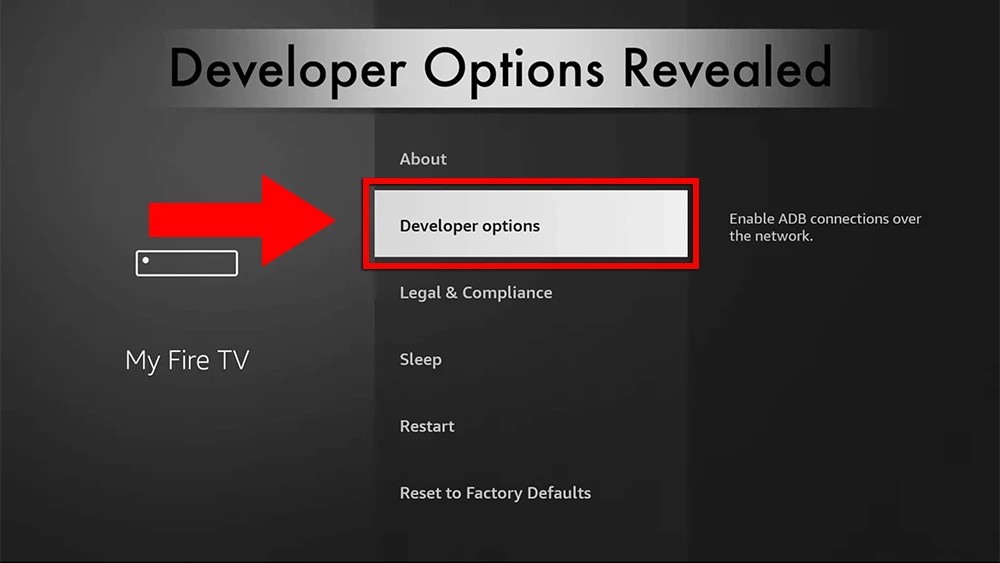
6. Choose “Developer Options“.
7. Select “ADB debugging” to turn it ON.
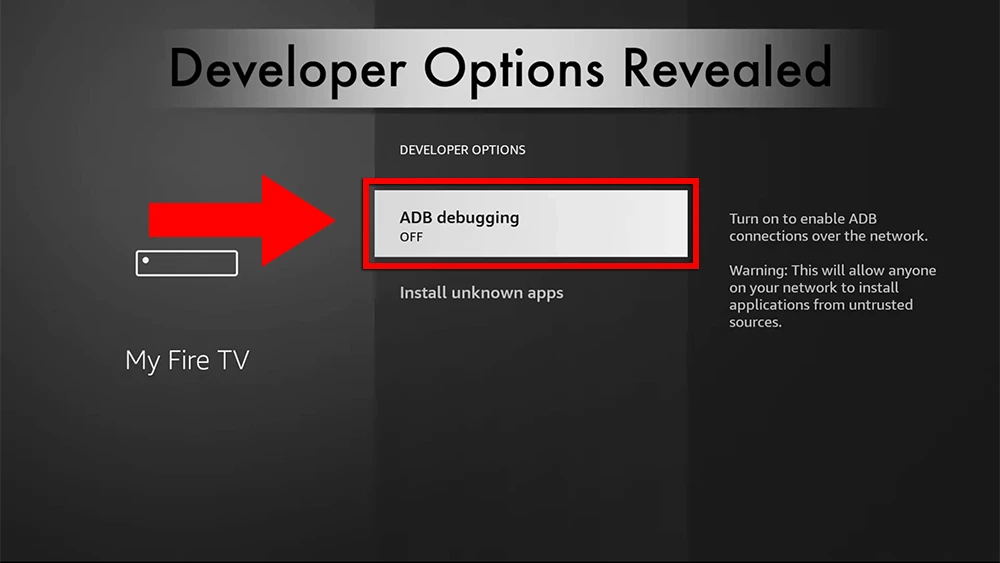
You can now sideload any application installer file (APK) to the FireStick without any issues.
Choose a compatible IPTV player for your Firestick and follow the setup instructions for your preferred application.

A TV-focused media player designed for compatible Android TV and Fire TV devices.

A media player designed to load compatible playlists and provide a simple viewing experience on supported devices.

A user-friendly media player available across multiple platforms, including Fire TV, for compatible IPTV playlists.